Quick Answer: How to Change Wi-Fi on Chromecast
If you’ve changed your Wi-Fi network, your Chromecast may still be looking for the old one. For older Chromecast models, use the Google Home app to forget the existing network and connect to the new one. If the old network is already gone and your Chromecast is offline, you’ll need to reset it and run through setup again. If you have a Chromecast with Google TV (the version with a remote), you can change the connection through your TV’s settings.
I purchased my first Google Chromecast over a decade ago. It’s been pretty amazing what that $35 has been able to do. Aside from the obvious things like streaming YouTube, Netflix, etc, there are some other cool things like streaming security camera feeds. It’s a great shortcut for getting a lot of the functionality you’d get from Apple TV or Roku but at a fraction of the price (the Chromecast apps list now also includes Showtime Anytime, HBO GO, Watch ESPN, and a variety of apps that will let you stream local media files, like MP3 or AVI files from your computer, phone or tablet).
I recently updated my home network (completely changing my Wi-Fi setup), at which point my Chromecast stopped working (as it was still trying to access the old network). Looking around online, others have done the same thing and have subsequently looked for help online. When this happens, you get a message telling you that your
- ‘Chromecast-device-name’ “(either the name you gave it, or the default name if you never changed it) can’t find the ‘network-name’ Wi-Fi network.”
- Run the Chromecast app to connect to a new network.
- Otherwise, check your ‘Old-Network-Name’ network.
Changing Your Chromecast Connection With Google Home

The app you’ll use now is Google Home. If you have an older Chromecast, Chromecast Ultra, or Chromecast Audio, this is where you’ll update its Wi-Fi connection.
If your old network is still available, connect your phone or tablet to it first. Open Google Home using the Google account associated with your Chromecast, then:
- Tap Home, then All devices, and touch and hold your Chromecast’s tile.
- Tap Settings, then Device information.
- Select Wi-Fi, then Forget this network.
- Run through the Chromecast setup process again, choosing your new Wi-Fi network and entering its password.
At this point, make sure your phone or tablet is connected to the new network as well. Once setup is finished, try casting something to check that everything is working.
You don’t need a separate paid app to change your Chromecast’s Wi-Fi settings. Google Home handles this.
What if Your Old Wi-Fi Network Is Gone?
This is probably the situation you’re in if you’ve replaced your router or changed your Wi-Fi name or password. Your phone is connected to the new network, but your Chromecast is still trying to find the old one.
If your Chromecast is offline, you won’t be able to use its network settings in Google Home. Instead, reset the Chromecast using the button on the device, then set it up again.
For a second-generation Chromecast, third-generation Chromecast, or Chromecast Ultra, leave it plugged into the TV and connected to power. Hold down the button on its side. The light should blink orange. When it turns solid white, release the button and let the Chromecast restart.
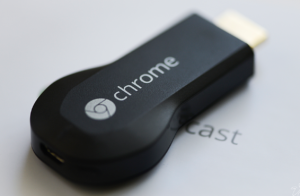
For a first-generation Chromecast (the original stick-shaped model), hold the button for at least 25 seconds, or until the light flashes red. Release it when the light starts blinking white and the TV screen goes blank.
A factory reset clears your Chromecast’s settings, so you’ll be starting over with setup. Once it restarts, open Google Home and follow the instructions to connect it to your new network.
One thing to keep in mind: Google has ended support for the first-generation Chromecast. It no longer receives software or security updates.
Changing Wi-Fi on Chromecast With Google TV
If your Chromecast came with a remote and has its own Google TV home screen, the process is a little different. You can update the connection directly on your TV.
Using the remote, open Settings, then Network & Internet. Select your new Wi-Fi network and enter its password. If you need to remove the previous connection, select the old network and choose Forget network.
Once it connects, try opening YouTube or another streaming app. If you also want to cast from your phone, make sure the phone is connected to the same home network.
Chromecast Still Won’t Connect to the New Wi-Fi?
Before you go through setup again, there are a few things worth checking:
- Check the password. Make sure you’re entering the new Wi-Fi password, especially if your replacement router came with different login details.
- Check the Wi-Fi band. The first-generation Chromecast only works with 2.4 GHz Wi-Fi. If your router has separate network names for 2.4 GHz and 5 GHz, choose the 2.4 GHz connection for that model.
- Avoid an isolated guest network. Some routers prevent devices on guest Wi-Fi from communicating with each other. That can stop your phone from finding the Chromecast.
- Check your iPhone’s permissions. Go to Settings → Privacy & Security → Local Network and make sure access is enabled for Google Home. Turn on Bluetooth as well.
- Restart the Chromecast. Disconnect its power cable for a minute, then reconnect it. Simply unplugging it from the TV’s HDMI port won’t restart it if it’s still receiving power.
If you’re still stuck, Google has a Chromecast Wi-Fi troubleshooting guide with additional steps.